Historic Borders
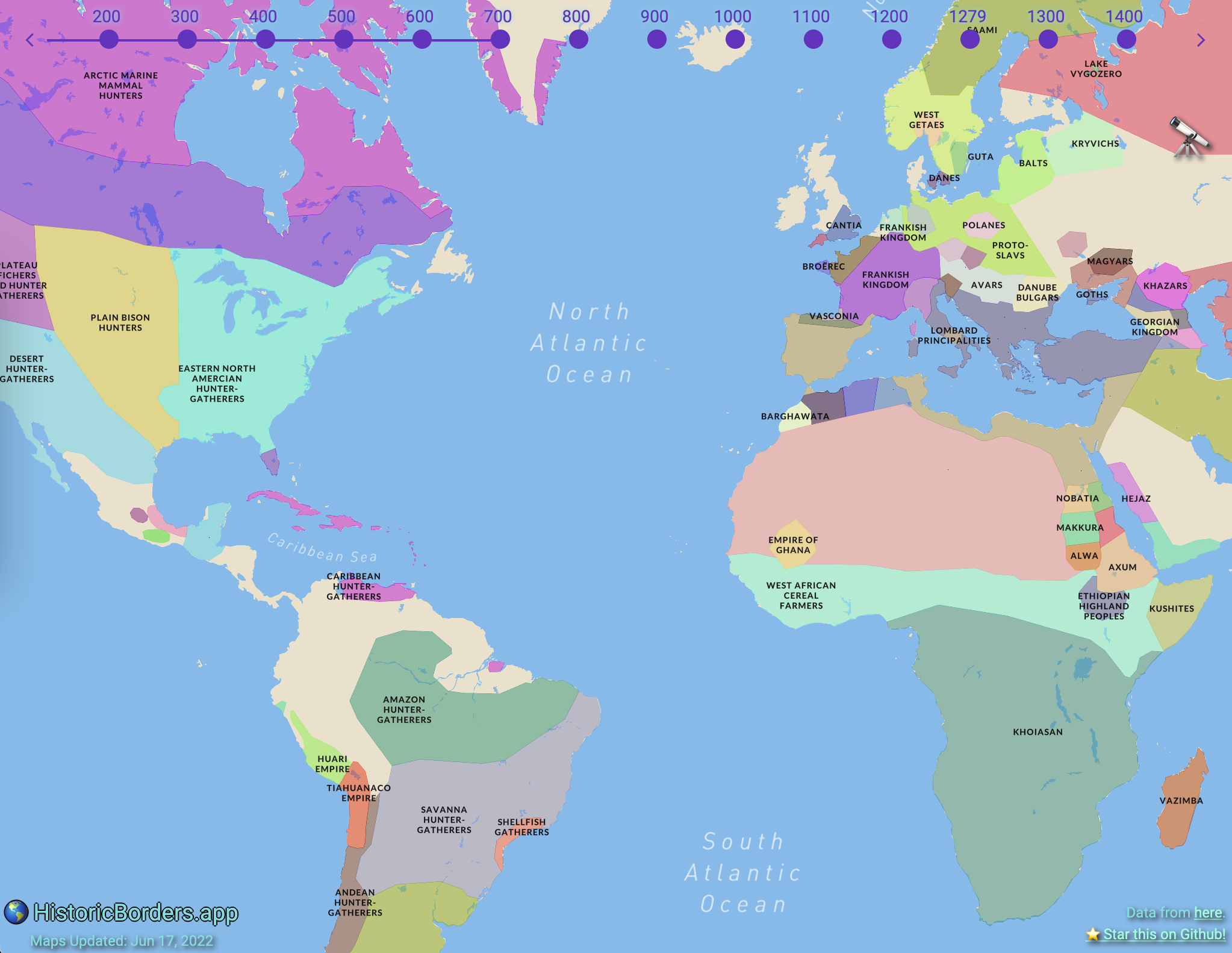
Visualize country borders from different times in history (2000 BC-1994)
As seen on r/dataisbeautiful.
Screenshot
Features
Information Sources
The app provides country information through two sources:
- Wikipedia (default) - Fetches real-time information from Wikipedia
- AI-powered - Uses Google Gemini AI to generate country information with historical context
AI Response Caching
The app uses Redis to cache AI responses for improved performance:
- ⚡ Instant responses for previously requested countries/years
- 💰 Reduced API costs - Fewer calls to Google Gemini
- 🔧 Smart expiration - 1-hour cache TTL keeps content fresh
- 📊 Analytics tracking - Cache hit/miss rates in Google Analytics
AI Feature Analytics
The app includes comprehensive Google Analytics tracking for the AI feature to understand user engagement and performance:
#### Tracked Events
Provider Usage:
toggle_provider- When users switch between Wikipedia and AIenable_ai/disable_ai- AI feature activation/deactivationprovider_restored- When preference is loaded from localStoragesession_provider_active- Active provider per session
request_initiated- AI request startedresponse_success- Successful AI responseresponse_time_success- Response time for successful requestsresponse_length- Character count of AI responsesresponse_word_count- Word count of AI responsesrequest_failed- Failed AI requestsapi_error- API-specific errors with status codesapi_key_missing- Missing API key events
cache_hit- Response served from Redis cache (faster)cache_miss- No cached response, API call madecache_error- Redis unavailable (fallback to API)cache_write_success- Response successfully cachedcache_write_error- Failed to cache response
popup_displayed- When popups show AI vs Wikipedia contentcontent_displayed- Successful content displaycontent_error_displayed- Error content shown to userscontent_empty_displayed- Empty/no content scenariospopup_closed- User closes information popups
- Response times (success/failure)
- Content quality metrics (word count, character count)
- Error rates and types
- User engagement patterns
All AI-related events use the category "AI Feature" for easy filtering in Google Analytics.
#### Data Privacy
Analytics tracking is anonymized and focuses on feature usage patterns rather than personal information. No API keys or sensitive data are tracked.
Setup
Prerequisites
- Node.js 18+ and yarn
- Google Gemini API key (free tier available)
- Google Analytics 4 property (optional, for analytics)
Installation
git clone https://github.com/nrgapple/historic-country-borders-app.git
cd historic-country-borders-app
yarn install
Environment Variables
Create a .env.local file:
# Optional for analytics
NEXT_PUBLIC_GA_FOUR=your_google_analytics_idOptional for map features
NEXT_PUBLIC_MAPBOX_ACCESS_TOKEN=your_mapbox_tokenRedis for AI response caching (required for caching)
REDIS_URL=your_redis_connection_stringRequired for AI features (server-side only)
GEMINI_API_KEY=your_gemini_api_key_here
Getting API Keys
#### Google Gemini API (Free)
- Visit Google AI Studio
- Sign in with your Google account
- Click "Create API Key"
- Copy the generated key to your
.env.localfile
- ✅ 60 requests per minute (generous free tier)
- ✅ No credit card required
- ✅ High-quality AI responses
- ✅ Excellent historical knowledge
- Set up Redis on Vercel or any Redis provider
- Add the
REDIS_URLenvironment variable to your project - See REDIS_SETUP.md for detailed instructions
- ⚡ Instant responses for cached content
- 💰 Reduces API usage and costs
- 🔧 Automatic 1-hour cache expiration
- 📊 Cache performance analytics
- Visit Google Analytics
- Create a new GA4 property
- Get your Measurement ID (format: G-XXXXXXXXXX)
- Add to your
.env.localfile
Development
yarn devOpen http://localhost:3000 to view the app.
Testing
# Run all tests
yarn testRun tests in watch mode
yarn test:watchRun specific test files
yarn test hooks/__tests__/useAI.test.tsx
AI Feature Troubleshooting
Common Issues
"AI information requires Gemini API key setup"
- Add your Gemini API key to
.env.local - Restart the development server
- See GEMINI_SETUP.md for detailed setup
- Normal response time: 1-3 seconds
- Check your internet connection
- Gemini API has rate limits (60 requests/minute)
- Try switching to Wikipedia temporarily
- Check browser console for detailed error messages
- Verify your API key is valid
Analytics Dashboard
To view AI feature analytics in Google Analytics:
- Go to Events → All Events
- Filter by Event Category = "AI Feature"
- Key metrics to monitor:
toggle_provider- Feature adoptionresponse_successvsrequest_failed- Success rateresponse_time_success- Performancecontent_displayed- User engagement
Performance Monitoring
The app tracks several performance metrics:
- Response Times: Average AI response time vs Wikipedia
- Success Rates: AI request success/failure ratios
- Content Quality: Word count and length of AI responses
- User Engagement: How users interact with AI vs Wikipedia content
Contributing
- Fork the repository
- Create a feature branch
- Make your changes
- Add tests for new functionality
- Ensure all tests pass
- Submit a pull request
License
MIT License - see LICENSE for details.
Acknowledgments
- Historical border data from World Historical Gazetteer
- AI powered by Google Gemini
- Maps powered by Mapbox
- Analytics by Google Analytics 4